
How to design your yard from a photo with Sow
Create a free account on the web
Go to usesow.com and sign up with an email and a password. In our test the dashboard opened in about 10 seconds with no card.
Open Auto Designs and pick a direction
Choose Classic (all 9 styles for 25 credits), Style Design (pick the styles you want at 5 credits per design) or Goal Design (describe the outcome you want). For one design, Style Design is the cheapest path.
Pick a style
The nine styles are Rock, Mediterranean, Naturalistic, City Courtyard, Cottage, Cutting, Traditional, Formal and Coastal. We chose Cottage, and the panel read "1 design · 5 credits".
Upload your photo and click Create 1 design
A clear photo of one bed, border or yard area works best. The page tells you the design will land in your gallery; our credits dropped from 50 to 45.
Open the result in the gallery
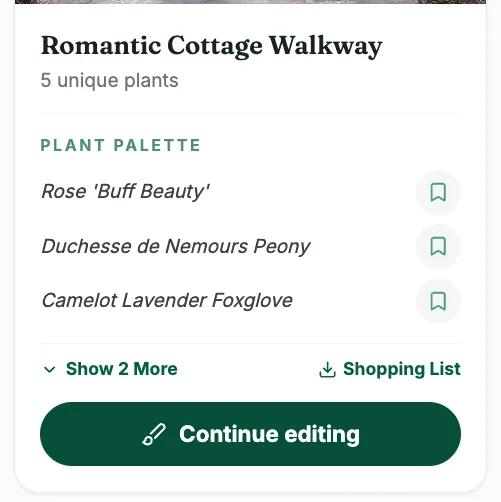
The render took under a minute; the gallery showed it 90 to 150 seconds after submitting. The card lists every plant with a link to its catalog page, plus Shopping List, Download and Preview.
Continue editing, or switch to the phone
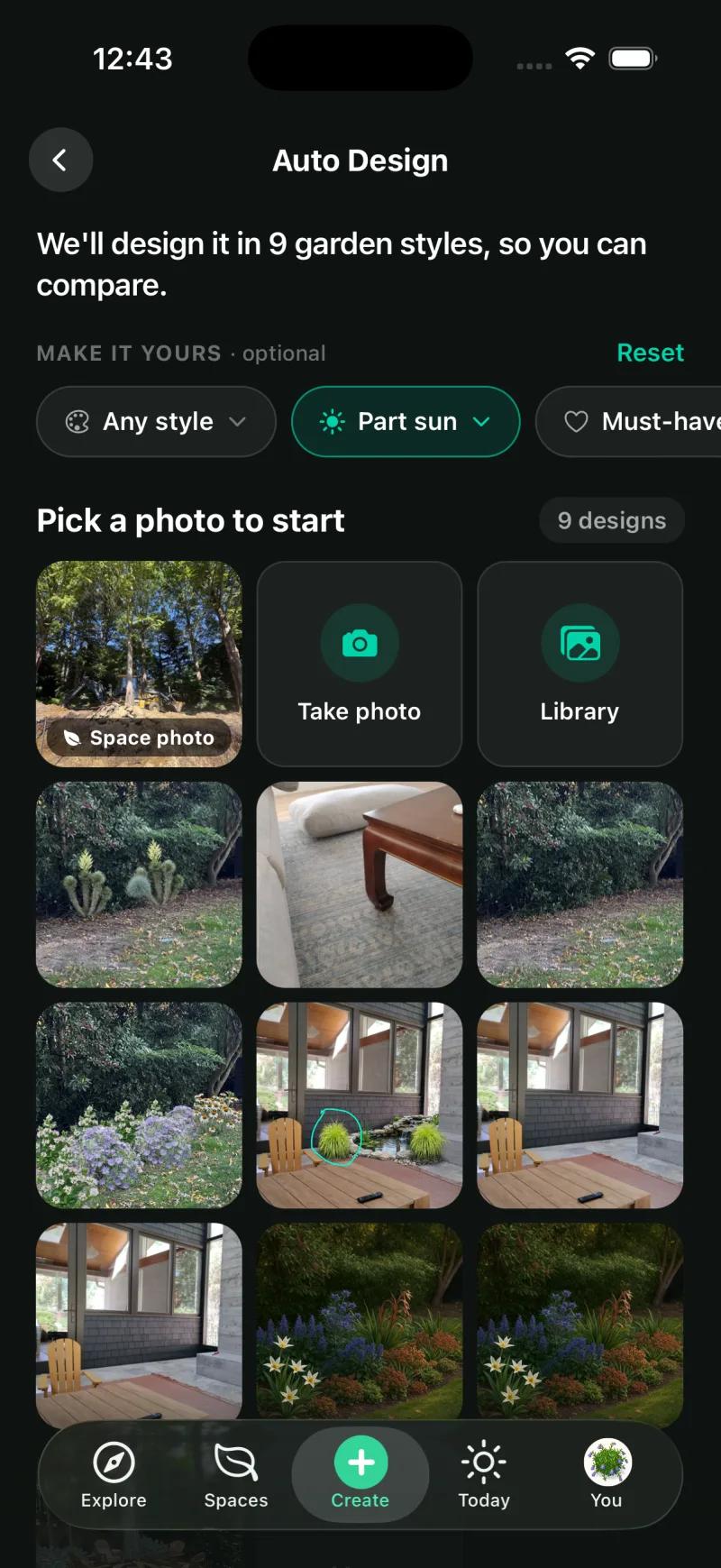
Continue editing opens the design in Design Studio to place plants and objects by hand. On the phone, Auto Design also asks for sunlight (pre-filled from your space) before it draws, so use it when light is the deciding factor.
What do you actually get back from one photo?
Your own yard, planted, with five named plants linked to their catalog pages.
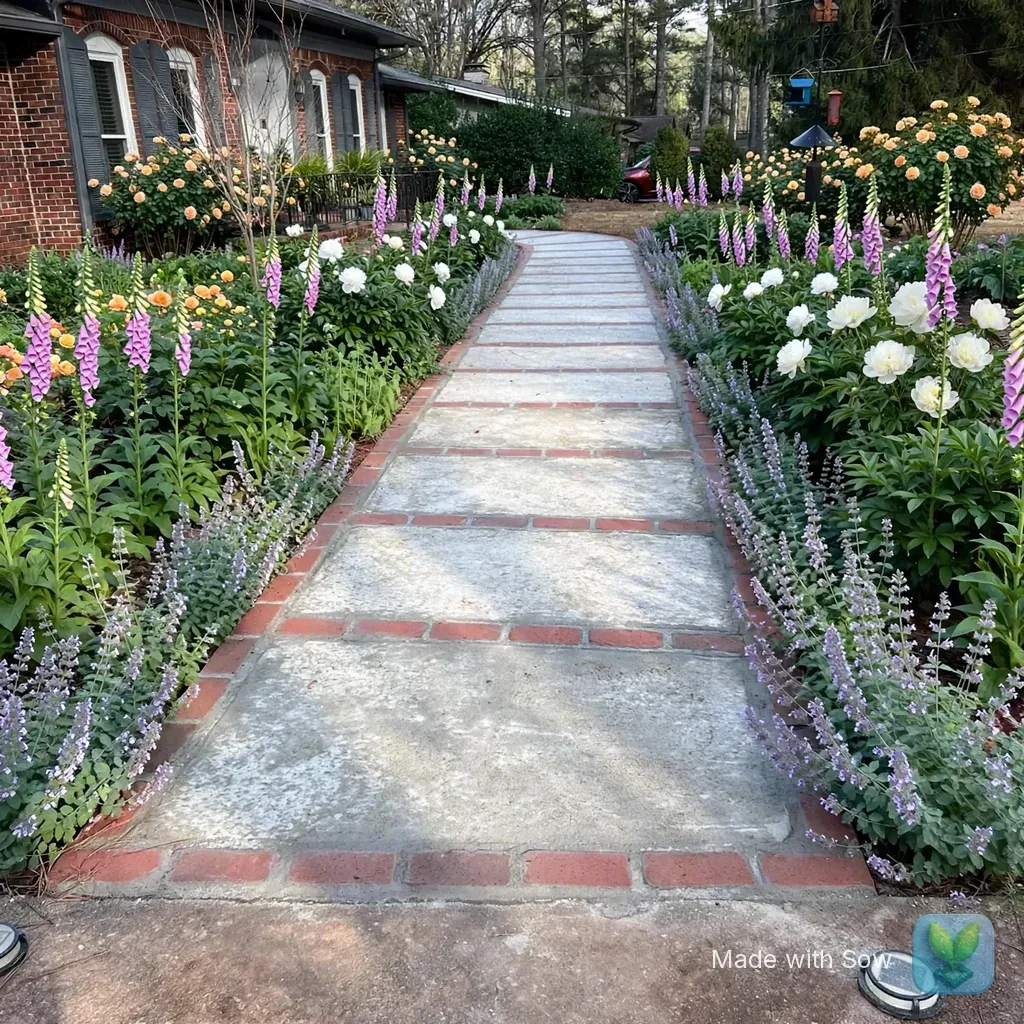
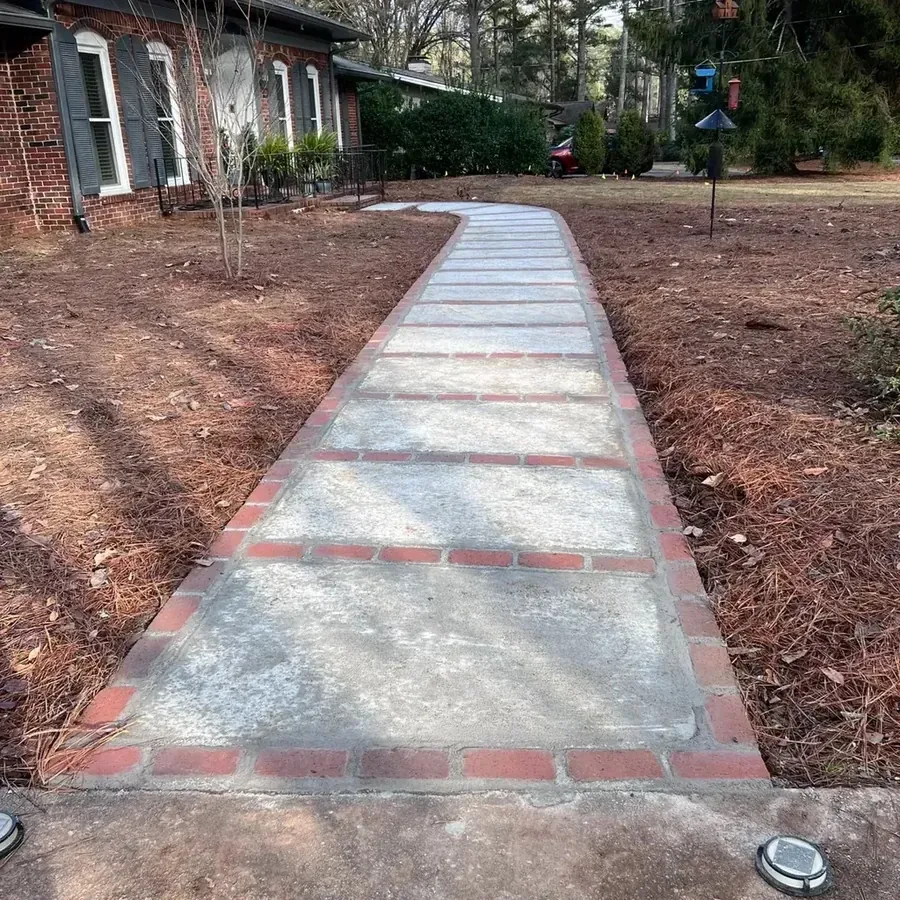
We uploaded the front-yard photo to Sow on the web with a brand-new free account, chose Style Design and the Cottage style, and clicked Create 1 design. The render itself finished in under a minute; the gallery showed it between 90 and 150 seconds after submitting, with no progress bar in between.
The design came back titled "Romantic Cottage Walkway" with five unique plants: Rose 'Buff Beauty', 'Duchesse de Nemours' peony, Camelot Lavender foxglove, Baltic parsley and Snowflake catmint. The house, the walkway, the bird feeder and the pine straw were all kept. Each plant name on the card links to its catalog page, and the card carries Save-plant buttons, a Shopping List, Download, Preview and Continue editing.
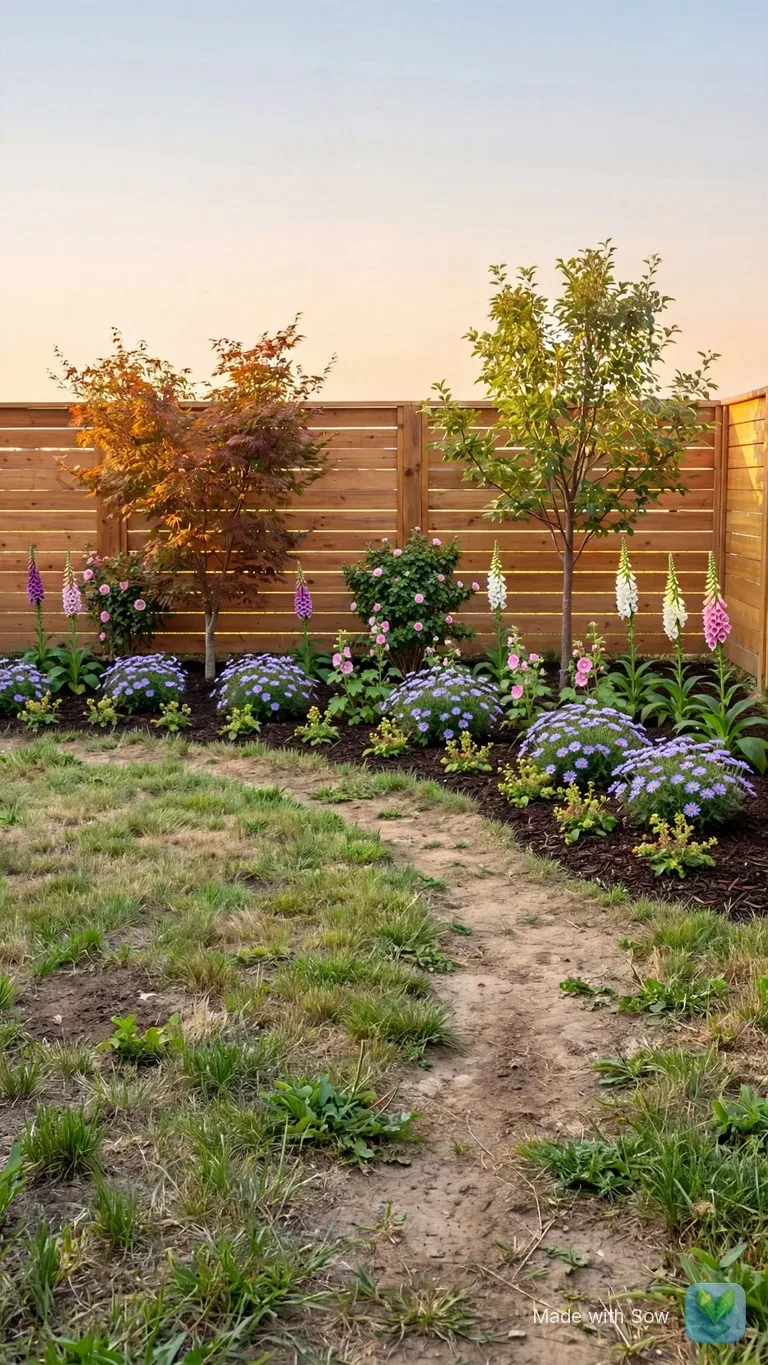
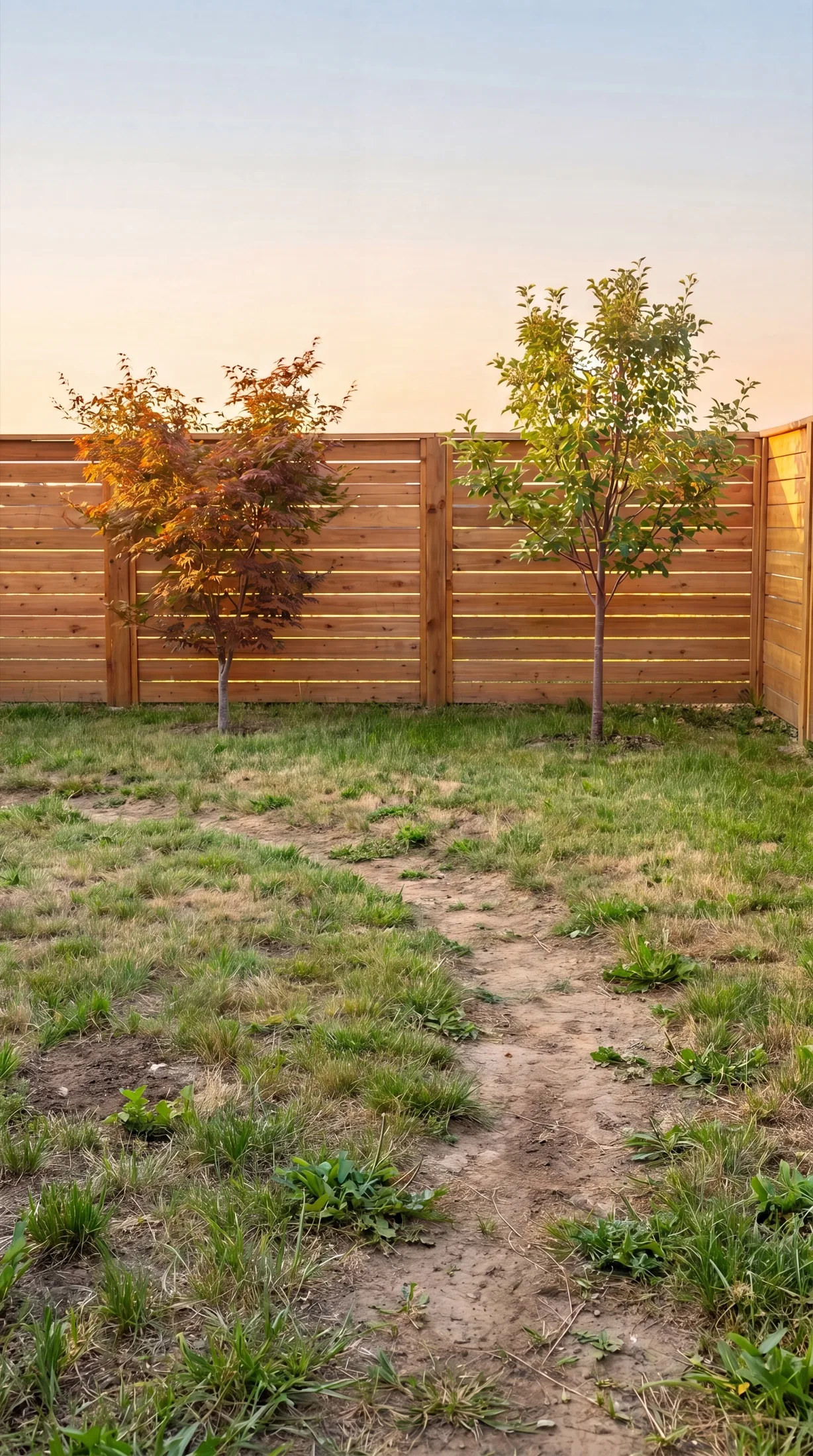
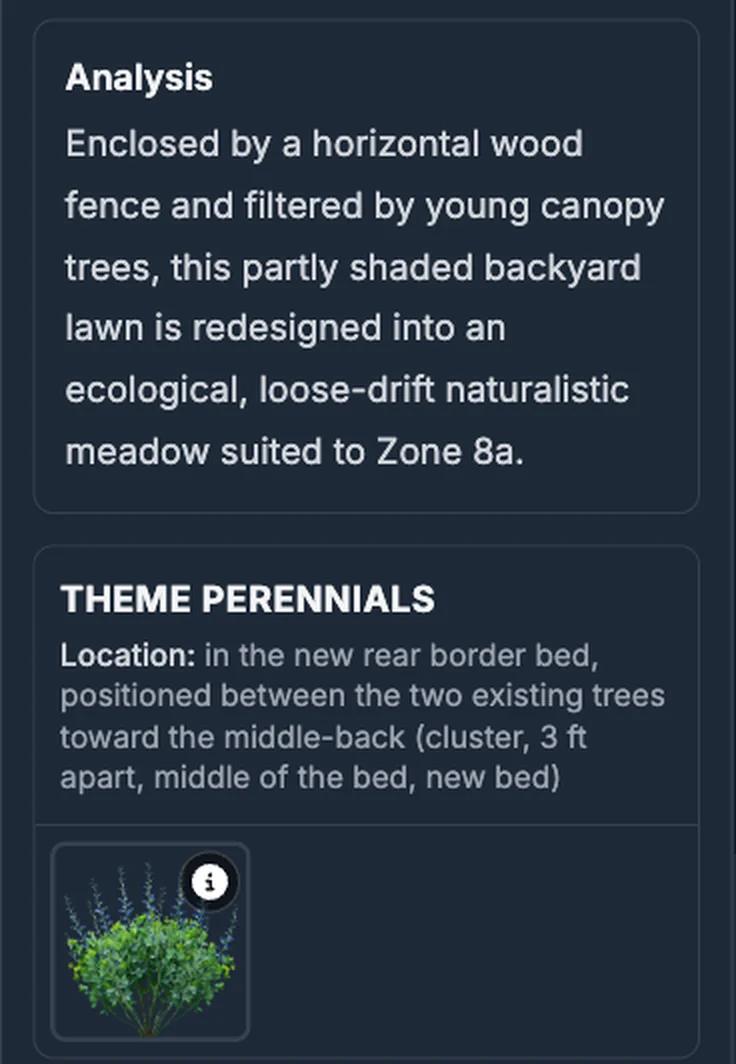
The backyard photo went through the same flow and came back as "Romantic Cottage Haven": Silas Marner English rose, common foxglove and checker mallow among its five plants, in a continuous mulched bed along the fence. The fence and both young trees were kept.
The patchy lawn was left exactly as photographed, so the result reads as beds added rather than a whole yard fixed. That is worth knowing before you upload a lawn you want replaced.
Will the plants survive in my yard?
Every plant is checked against your zone, and the phone takes the light from your space.
This is the question that separates a design from a picture. Sow draws from 12,000+ real outdoor plants, each with zone, sun, mature size, bloom and care data, and it filters by your hardiness zone before anything is drawn. Zone matching covers the US, Canada, the UK and Australia.
Light matters as much as zone, and here the two versions of Sow differ. On the phone, each space you create carries its sun exposure and zone, and the Auto Design sheet pre-fills a sunlight chip from it. Our front-yard run on iPhone was set to part sun and came back with The Fairy Rose, Foxglove Sugar Plum, Hawera daffodil and anemone: sensible picks for a bed under pines.
On the web, Goal Design lets you describe the light in your brief, and Help Me Choose in Design Studio asks for style, zip code, plant roles and a sunlight preference before it recommends anything.
Can I change the design after it is generated?
Yes. Remove, recount or swap any species on the phone, or place plants by hand on the web.
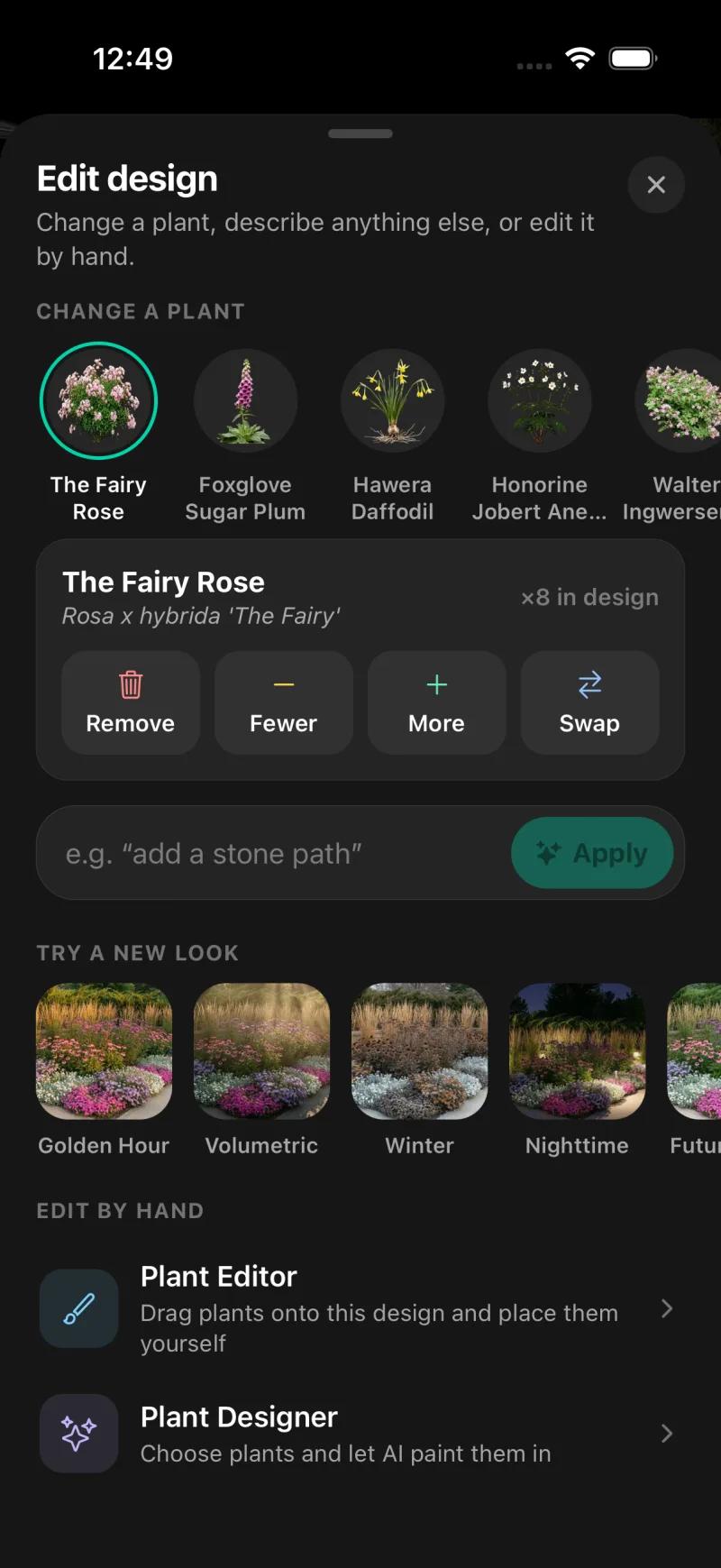
Yes, and this is the part most photo tools skip. On the phone, Edit design opens a sheet with a Change a plant chip for each species, a text box for instructions such as "add a stone path", Try a new look restyles (Golden Hour, Volumetric, Winter, Nighttime and Future growth), and two ways to edit by hand: the Plant Editor, where you drag plants, furniture, lighting and paving onto the design and place them yourself, and the Plant Designer, where you choose the plants and Sow paints them in.
Tap any species chip and you get Remove, Fewer, More and Swap, with the count in this design and the botanical name alongside. Eight Fairy roses become fewer, or become a different rose, without redrawing anything.
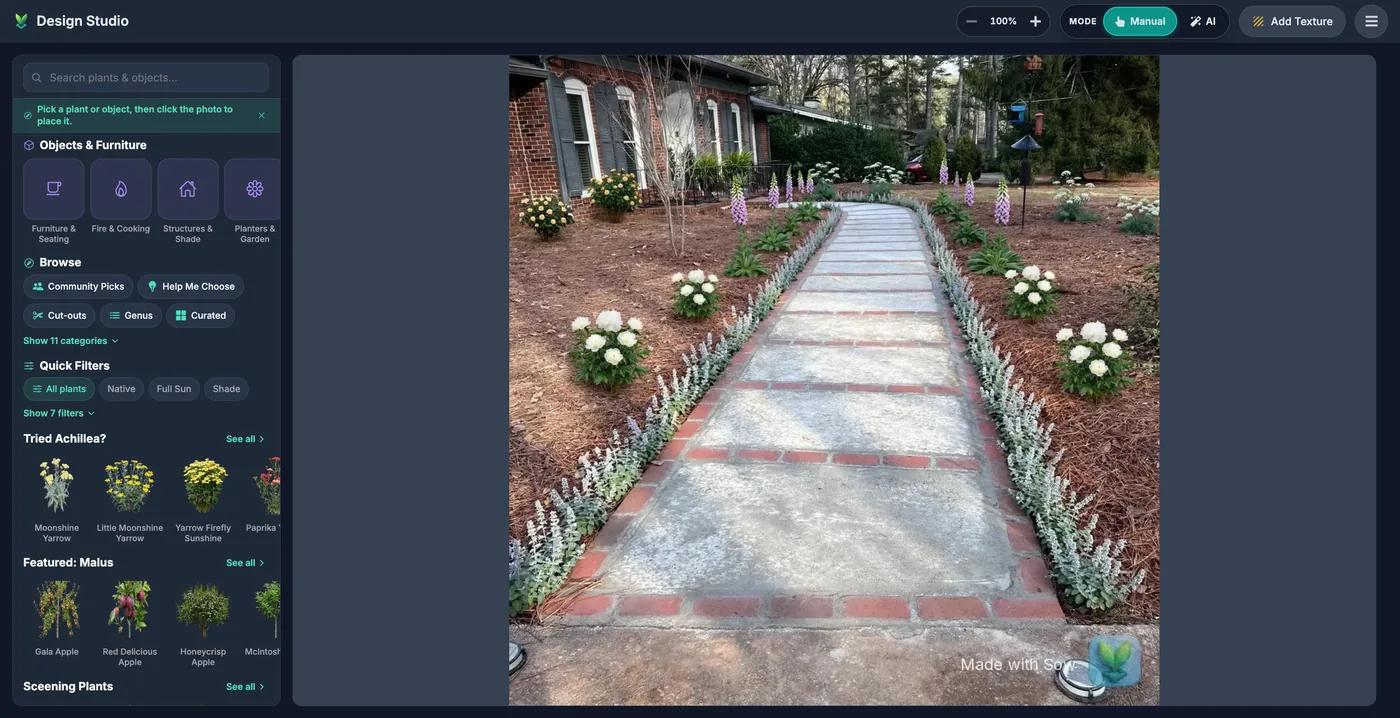
On the web, Continue editing opens the render in Design Studio as the canvas, with a plant and object library, Objects and Furniture, quick filters for Native, Full Sun, Shade, Deer, Drought and Pollinators, and cut-outs you place over the image by hand. Place every plant. Down to the inch.
From picture to plant list to planting plan
Pro turns the design into beds on your satellite view, with quantities and editable prices.
A design you like is a start. Sow then carries the same plants into the tools that get them into the ground. On mobile, the Plants list under a design shows every species with its botanical name and quantity: on our front yard, The Fairy Rose x8, Foxglove Sugar Plum x28, Hawera daffodil x66 and anemone x14. Save all adds them to your library in one tap.
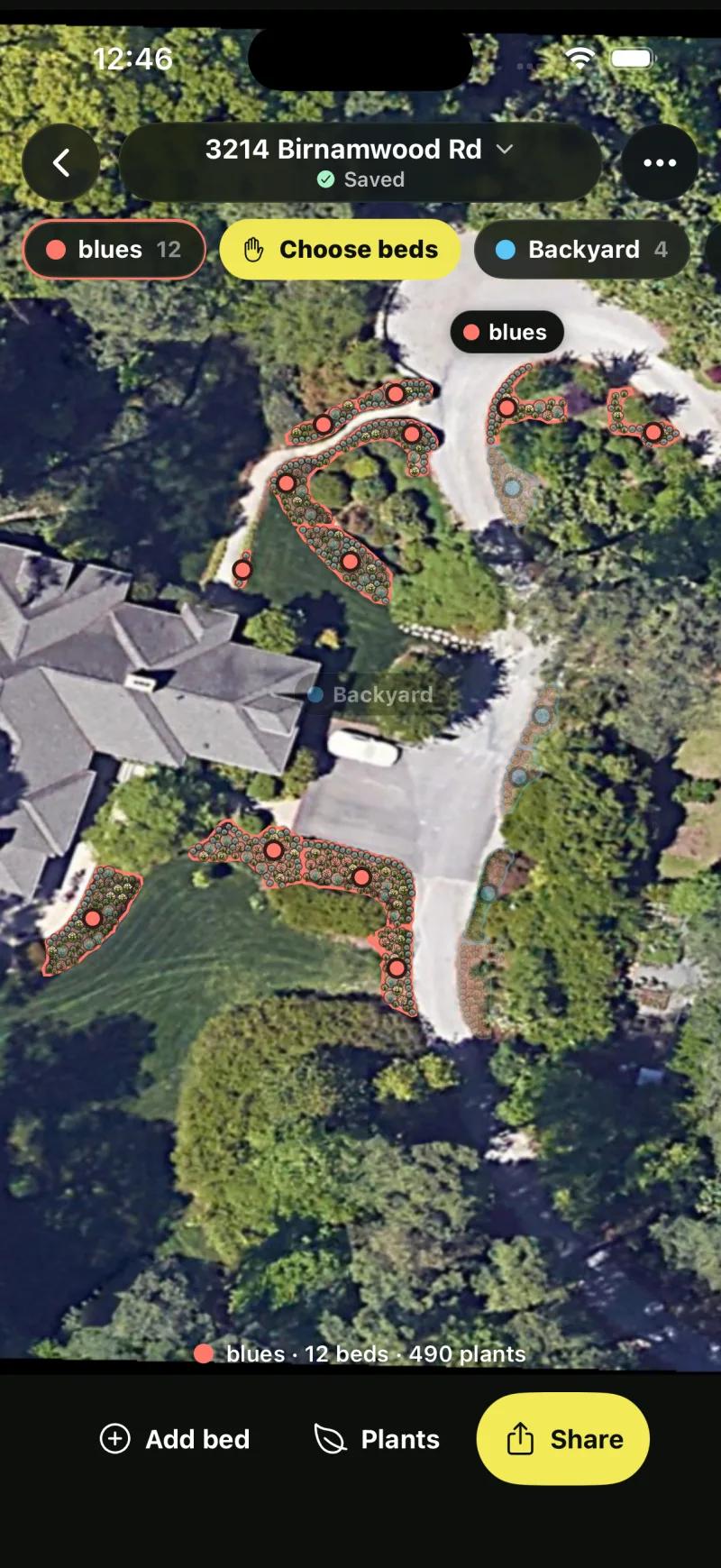
Planting Plans works from above. Sow finds the beds in a satellite view of your yard on its own, then fills each one with a planting plan you can tweak. Each bed shows its area, sun and plant count, four layout styles (Layered, Drifts, Rows and Edged), and plant chips with counts, swap and remove. Our test address came back with 17 beds across its spaces.
Sow also checks 18 online nurseries every day for prices and deals, and every plant in a design links straight to where you can buy it at the lowest price it found.
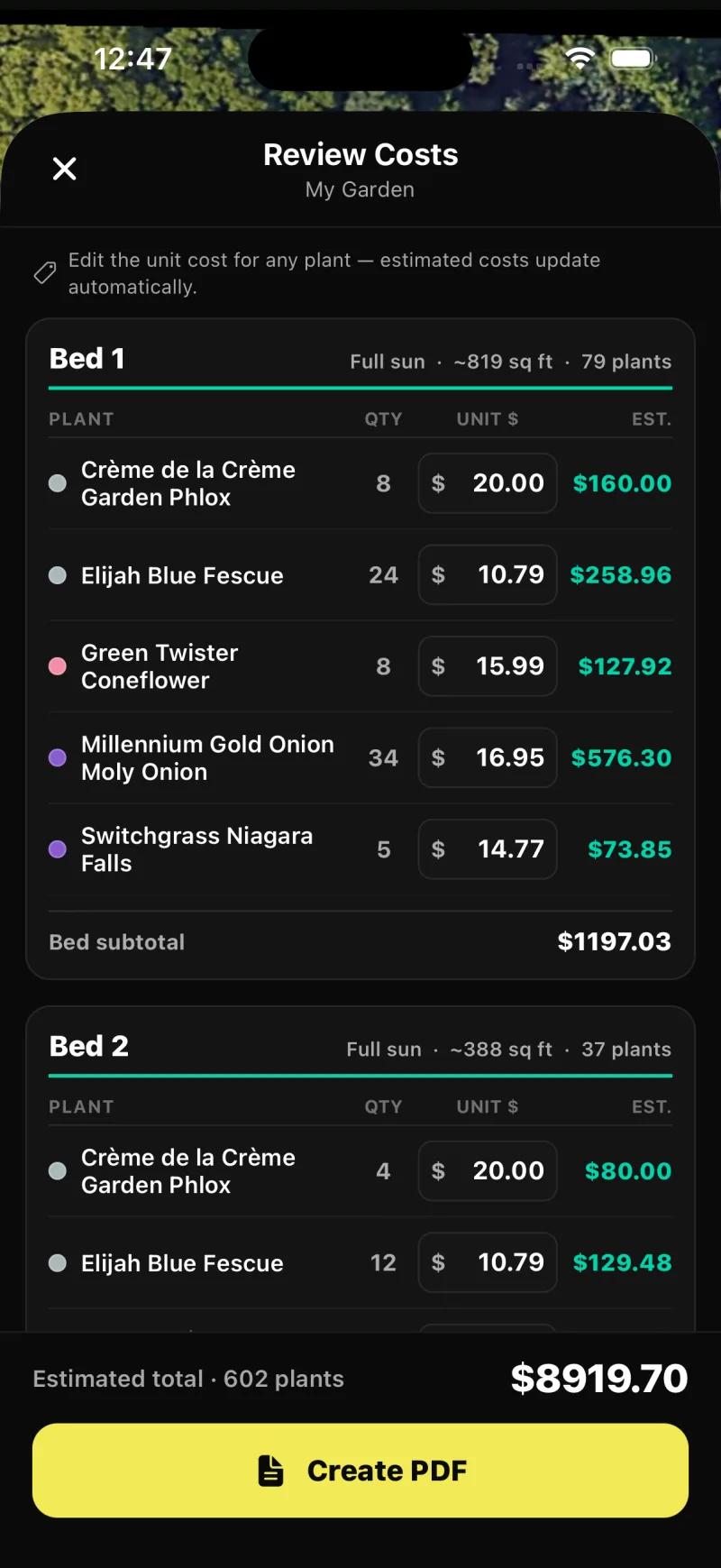
Share, Whole plan, Save PDF opens Review Costs: plant, quantity, an editable unit price and an estimated cost per species, bed subtotals, and an estimated total at the bottom. That is the priced, quantified plant schedule, and it is the part most photo tools never reach.
What happens after you plant?
Care reminders for the plants you own, Plant Doctor for sick leaves, and a weekly water budget.
Most design tools end at the image. Sow keeps the design alive. Each space tracks what is planted, what is blooming and what needs doing. Care reminders are timed to your climate and the plants you actually own: deadhead, divide, prune, water.
A water budget weighs rain in against evaporation out, measured against your area's historic average, and gives a plain answer: water this week, or skip it. Early warnings cover frost, heat and dry spells.
Point your camera at a leaf that looks wrong and Plant Doctor names the problem in plain language and gives you something to do about it this afternoon. The weather-aware care uses US forecasts; outside the US you still get zone matching, the plant data and the design tools, but not the forecast-driven reminders.
How much of this is free, and do I need to sign up?
You need an account but no card: 10 free designs, and more for taking part.
You need an account. Web signup is an email and a password, took about 10 seconds in our test. There is no version that runs without signing up, because your designs, spaces and plant library need somewhere to live.
Everyone gets 10 free designs to start, and more free designs for taking part: posting a design earns 25 credits (five designs), a referral 100, and challenges and helpful answers earn credits too.
Pro lifts those limits and adds Planting Plans and the satellite map editor. Web Pro has a 7-day trial or costs $9.99 a month; the App Store subscription is $59.99 a year as an in-app purchase. Pro+ has a 3-day trial, or $29.99 a month, and adds client tools.
What free includes, and what Sow does not do
What free includes
- A free account: email and password, no card
- 10 free designs to start, and unlimited more for taking part: posting a design earns 25 credits, a referral 100
- The plant list with catalog links, Download, the Shopping List PDF, and Continue editing in Design Studio
- Upgrading: Pro adds Planting Plans and the satellite map editor; Pro+ adds client tools
- Free to start; Pro from $39.99 a year on the web ($59.99 a year through the App Store); Pro+ $99.99 a year
Pro from $39.99 a year on the web ($59.99 a year via the App Store). Pro+ $99.99 a year. Prices checked October 2026.
What Sow does not do
- No AR view and no 3D walkthrough
- No hardscape CAD or construction documents; paving, mulch, gravel, fences, structures and water features are design elements on the photo
- Weather-aware care uses US forecasts; zone matching covers the US, Canada, the UK and Australia
- Outdoor plants only
- The web Shopping List PDF prices each species at the lowest listed nursery price (often the smallest pot) and does not show mature size or spacing
- A watermark on free designs


Questions people ask
Is there a free AI landscape design app?
Sow is free to start on iPhone, Android and the web. Everyone gets 10 free designs to start and more for taking part (posting a design earns 25 credits, a referral 100). Every one is made of named, zone-checked plants you can edit one by one, with a planting plan behind them.
Can AI design my yard from a photo?
Yes, within limits. Sow read our front-yard photo, kept the house, walkway and bird feeder, and planted both borders with five named species, in under three and a half minutes end to end on the phone. What it will not do is redesign hardscape, grade a slope, or replace a lawn you did not ask it to replace: in our backyard test the patchy lawn stayed exactly as photographed.
Are AI yard design apps accurate about plants?
Only the ones that work from a real plant catalog. Sow places species from a 12,000+ plant library with zone, sun, mature size and bloom data, and the plants in our test designs were real cultivars you can buy. The phone flow asks for sunlight and chose foxglove, anemone and daffodils for our part-shade bed.
Can I use AI landscape design without signing up?
Not with Sow. You need an account so your designs, spaces and plants have somewhere to live. Signup on the web is an email and a password and took about 10 seconds in our test, with no card required.
Do free AI garden apps add watermarks?
Most do, and Sow does. Free designs carry a "Made with Sow" mark in the bottom right corner, visible on both of the free-tier renders on this page. The watermark is a free-tier limit.
Can I edit an AI-generated landscape design?
In Sow, yes. On mobile, every generated species can be removed, counted up or down, or swapped, and the Plant Editor lets you drag in plants, furniture, lighting and paving by hand, on a generated design or a plain photo; on the web, Design Studio places plants and objects over the render. You can also describe a change in plain words, such as "add a stone path", or restyle the same planting as Golden Hour, Winter, Nighttime or Future growth.
How do I use AI for landscape design?
Start with one clear photo of a bed, border or yard area, not the whole property. Set your zone and light before generating, which the Sow phone app does from your space. Pick a style, generate, then check every plant name against its catalog page before you fall for the picture. Swap anything that does not suit the spot, then carry the plants into a planting plan with quantities. The steps above walk through the web flow.
Can ChatGPT do landscape design?
It can suggest plants and talk through ideas. When we asked ChatGPT to show a design on our test photo, it removed the porch, redrew the walkway, named none of the plants, and changed the whole picture when we asked to move one. In the same test Sow kept the house, named every plant, and let us change them one at a time. Our separate page, linked below, shows the full test.
Keep reading
Design your yard from a photo, free
One photo is all it takes. Your first 10 designs are free, every plant in them is real, and you can change any of them.